1. Requirements
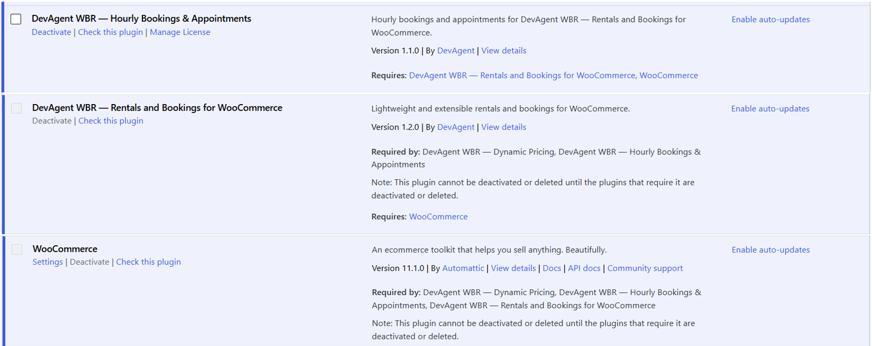
DevAgent WBR — Hourly Bookings & Appointments requires the following software:
2. Installation
1
Install and activate WooCommerce.
2
Install and activate DevAgent WBR — Rentals and Bookings for WooCommerce 1.2.7 or higher.
3
Go to Plugins → Add New Plugin → Upload Plugin.
4
Upload the DevAgent WBR — Hourly Bookings & Appointments ZIP.
6
Edit a Booking Simple or Booking Variable product and choose Hourly slots / appointments in Booking mode.
7
Configure the schedule, slot selection, capacity, pricing and frontend appearance.
Activation prepares the Hourly-owned storage used for occupancy, temporary holds and transactional locking.
Illustrative screenshot from the earlier Hourly 1.1.0 release. The current supported release is Hourly 1.2.3; the installation steps remain the same.
3. License and updates
Go to DevAgent WBR → Settings → Licenses to manage the Hourly license.
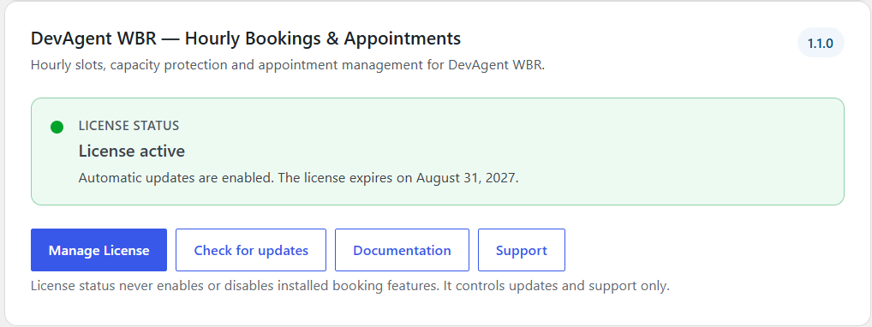
The license is used for update delivery and support eligibility. It is not a booking feature gate. A missing, inactive, expired or temporarily unverifiable license must not disable installed bookings, change prices, block checkout or remove booking data.
When available, use Check for updates to ask WordPress to refresh the add-on version information immediately.
Refresh license status checks this website’s activation with the DevAgent license service. This read-only check does not activate or deactivate a license.
Manage License → Deactivate remotely deactivates this website. Existing Hourly bookings, products, settings and WooCommerce order records remain intact.
An active license is required for commercial updates and support; installed booking functionality continues to work if the license is inactive.
Hourly license card with version, status and update controls. Public documentation must never expose a complete license key.
4. Booking mode
Date range
Use Date range for the standard DevAgent WBR day/night booking workflow.
Hourly slots / appointments
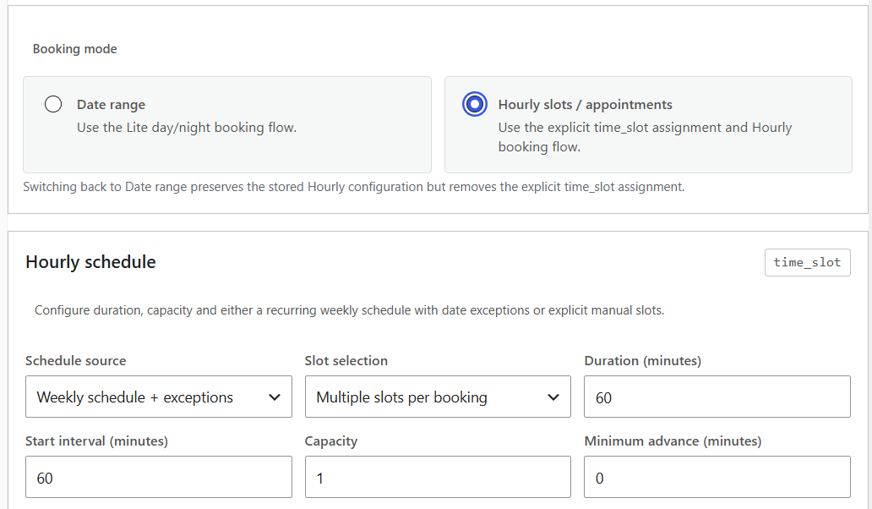
Choose Hourly slots / appointments to assign the time_slot booking mode and enable Hourly.
For a Booking Variable product, the booking mode belongs to the variable product as a whole. Each variation keeps its own Hourly configuration.
If the product is changed back to Date range, the stored Hourly configuration is preserved, but the explicit time_slot assignment is removed.
When Hourly slots / appointments mode is selected, the WBR Base date-range-only Capacity per day and Minimum units fields are hidden. Hourly slot capacity is configured separately. Returning to Date range restores the Base fields and previously saved values.
The Booking mode selector exposes Date range and Hourly slots / appointments as separate modes.
5. Hourly product or variation settings
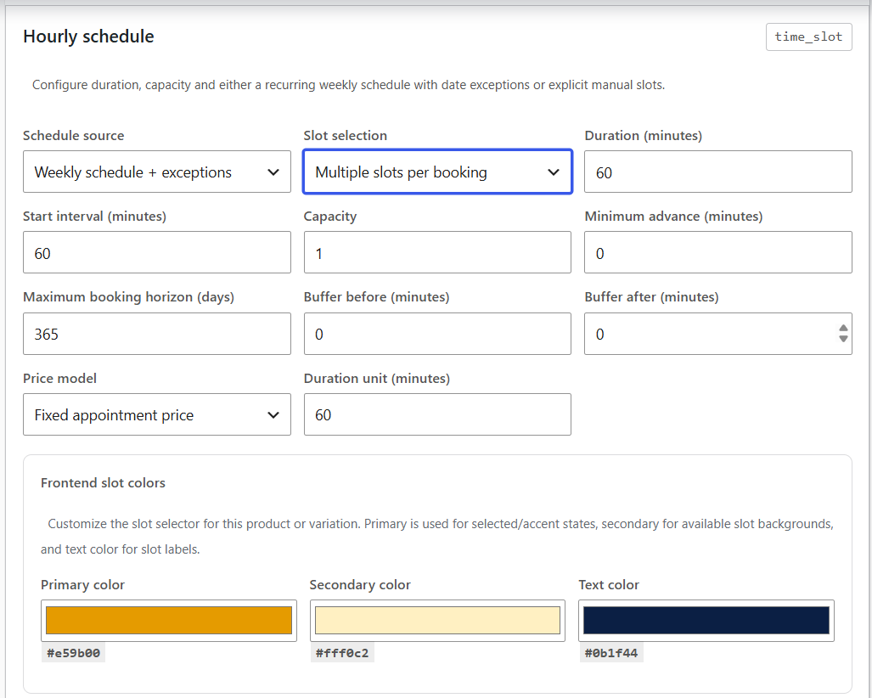
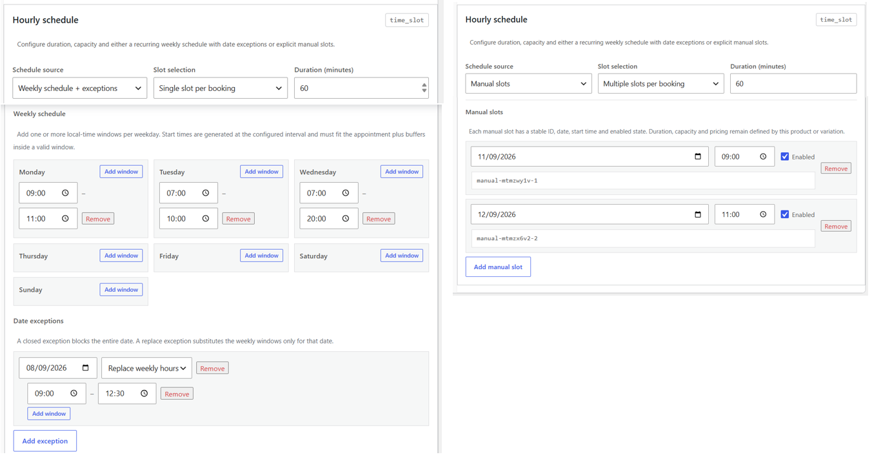
The Hourly schedule section contains the settings that control availability, selection, timing, capacity and pricing.
Schedule source
Choose Weekly schedule + exceptions or Manual slots. Only one schedule source is used at a time.
Slot selection
Choose Single slot per booking or Multiple slots per booking. The value is stored independently for a Booking Simple product or each variation.
Time, capacity and limits
Minimum advance, Maximum booking horizon, Buffer before and Buffer after.
Price model
Choose Fixed appointment price or Price per duration unit. Duration unit is used only by the second model.
6. Single and Multiple slot selection
Single slot per booking
1 booking = 1 local date + 1 slot + WooCommerce quantity. Selecting a different slot replaces the previous choice. Frontend instruction: Choose one available appointment time.
Multiple slots per booking
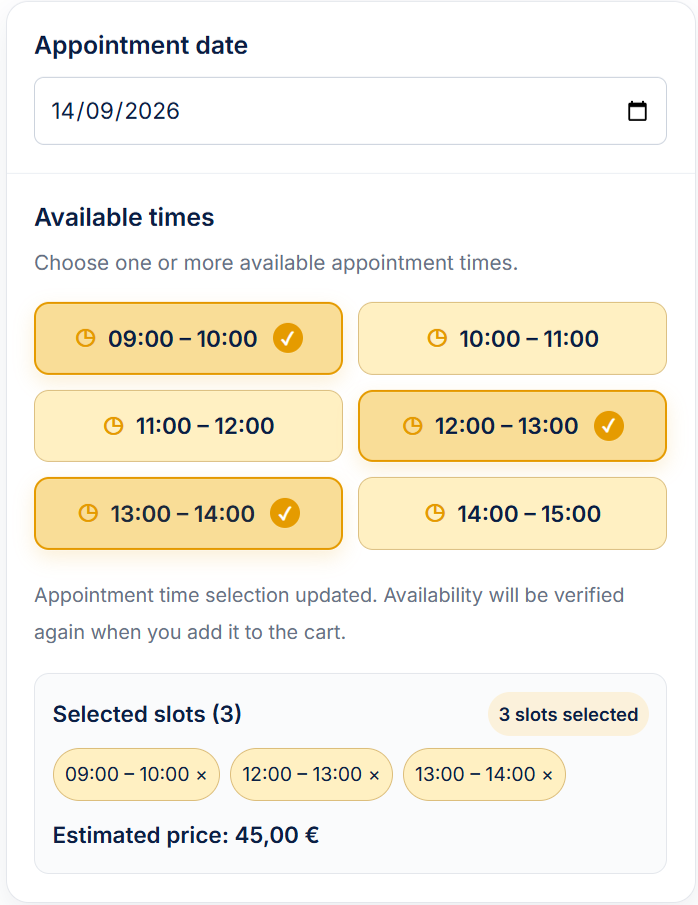
1 booking = 1 local date + multiple slots + WooCommerce quantity. Slots can be consecutive or non-consecutive and the selected set remains one booking through cart, checkout and order data.
Multiple mode rules:
- all selected slots must belong to the same local date;
- slots may be consecutive or non-consecutive;
- up to 48 slots may be selected in one booking;
- each slot keeps its own identity and occupancy;
- the complete set remains one booking.
WooCommerce Quantity consumes that amount of capacity in every selected slot. Before creating new holds, Hourly checks the complete selected set. If any slot lacks capacity, the complete operation is rejected and no partial hold should remain on the other slots.
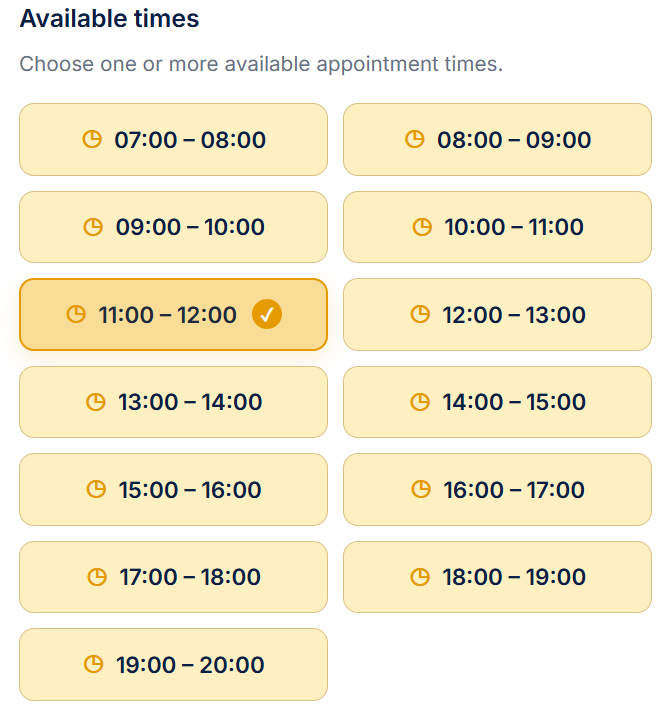
Real Multiple slots selection with non-consecutive times on one date and the selected-slots summary.
7. Availability sources
Weekly schedule + exceptions
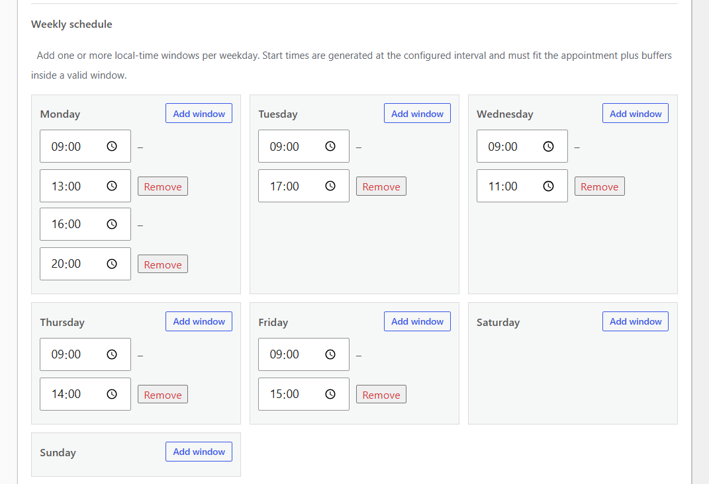
Use Weekly schedule + exceptions for recurring availability. Each weekday can contain one or more time windows. Use Add window to add another window.
Possible start times are generated according to Start interval (minutes). The complete appointment, including buffers, must fit inside a valid availability window.
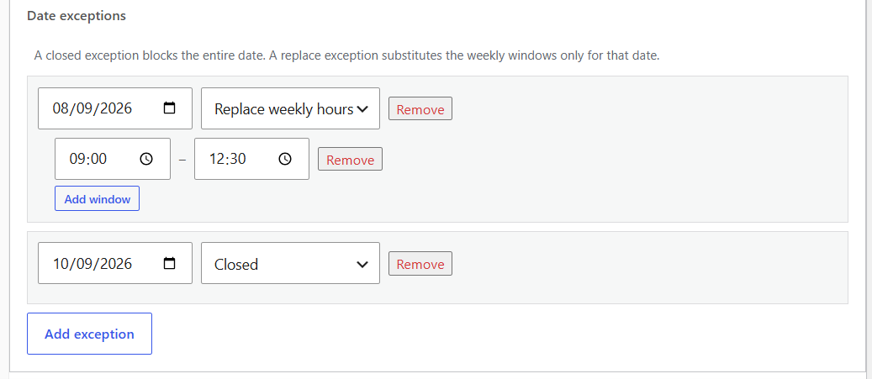
Date exceptions can be:
- Closed: blocks the entire date.
- Replace weekly hours: replaces the normal weekly hours for that date.
Manual slots
Use Manual slots when availability is not recurring. Each manual slot contains a stable ID, a local date, a start time and an Enabled/disabled state.
Duration, capacity, buffers and pricing remain defined by the product or variation. Use Add manual slot to create a slot.
8. Frontend slot colors
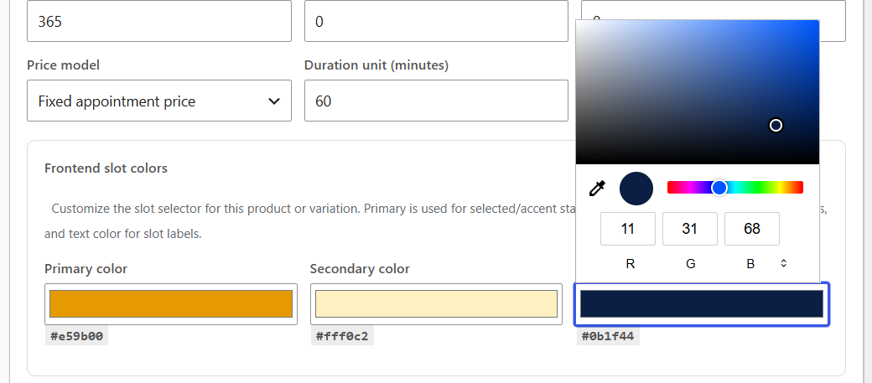
The Frontend slot colors section lets each product or variation customize its Hourly selector.
Primary color
Used for selected states and primary accents.
Secondary and Text colors
Secondary is used for available states and backgrounds. Text color is used for slot labels.
Default values in 1.1.0:
- Primary:
#e59b00 - Secondary:
#fff0c2 - Text:
#0b1f44
The values are normalized as hexadecimal colors and apply only to the relevant Hourly booking surface.
Per-product or per-variation Primary, Secondary and Text color settings.
Real frontend selector reflecting a customized color combination
9. Products and variations
Each variation stores its Hourly configuration independently:
- Schedule source;
- Slot selection;
- Duration;
- Start interval;
- Capacity;
- Minimum advance;
- Maximum booking horizon;
- Buffers;
- Price model;
- Duration unit;
- Frontend slot colors;
- Weekly schedule and exceptions, or Manual slots.
Do not assume automatic inheritance of these values from the parent product. The time_slot booking-mode assignment belongs to the Booking Variable product as a whole.
Two variations in the same Booking Variable product showing independent Hourly configuration.
10. Pricing, buffers and overlaps
Fixed appointment price
Hourly uses the WooCommerce product or variation price as the base amount. In Single slot mode, the base price applies to the selected slot.
In Multiple slots mode:
Fixed-price example
booking unit price = base price × number of selected slots
- Base price: €30 per slot
- Selected slots: 3
- Quantity: 1
- Booking unit price: €90 before taxes or discounts
WooCommerce Quantity is applied to the complete booking afterwards.
Price per duration unit
The price is calculated from the accumulated duration of the selected slots and Duration unit (minutes).
Duration-unit example
- Duration unit: 30 minutes
- Accumulated selected duration: 120 minutes
- Billable units: 4
WooCommerce Quantity is applied after Hourly calculates the booking unit price.
Buffers and overlaps
Buffers are part of the occupied interval. A 10:00–11:00 appointment with a 15-minute buffer before and after occupies 09:45–11:15. Capacity and overlap checks use the effective occupied intervals.
Bookings do not cross midnight in version 1.1.0.
11. Cart, checkout, orders and capacity protection
Hourly stores the booking context when WooCommerce creates or restores a cart line.
Before checkout completion, the server revalidates the product or variation, date, selected slots, quantity, capacity and price.
In Multiple slots mode, the complete selected set remains one booking line. It is not converted automatically into several independent bookings.
Hourly maintains its own occupancy and lock storage. In version 1.2.3, the product page prevents Add to cart when no available appointment time is selected or when the requested quantity exceeds slot availability. Changing Quantity refreshes the time choices and clears any selection that is no longer valid. Classic cart and WooCommerce Cart/Checkout Blocks reject invalid quantities or incomplete Hourly bookings with actionable messages. The server performs the final capacity and hold validation; a disabled frontend button is not the only protection. The protected flow includes deterministic locking, validation inside the critical section, temporary holds, order confirmation and release when required.
Expired holds stop blocking capacity even if physical cleanup occurs later.
Order data and schema version 2: A Multiple slots booking may associate several occupancy rows with one WooCommerce order item, one row for each selected slot. Version 1.1.0 uses Hourly storage schema version 2 for this relationship.
Relevant order-status and quantity changes must keep occupancy synchronized and release or retain capacity as required.
12. Appointments and global Hourly settings
Appointments
Go to
DevAgent WBR → Appointments. The screen lists Hourly reservations backed by WooCommerce orders and provides filters for date, product, variation and status.
Customer personal data remains in WooCommerce. Hourly does not need to duplicate it in the occupancy table.
Global settings
Go to
DevAgent WBR → Settings → Hourly & Appointments.
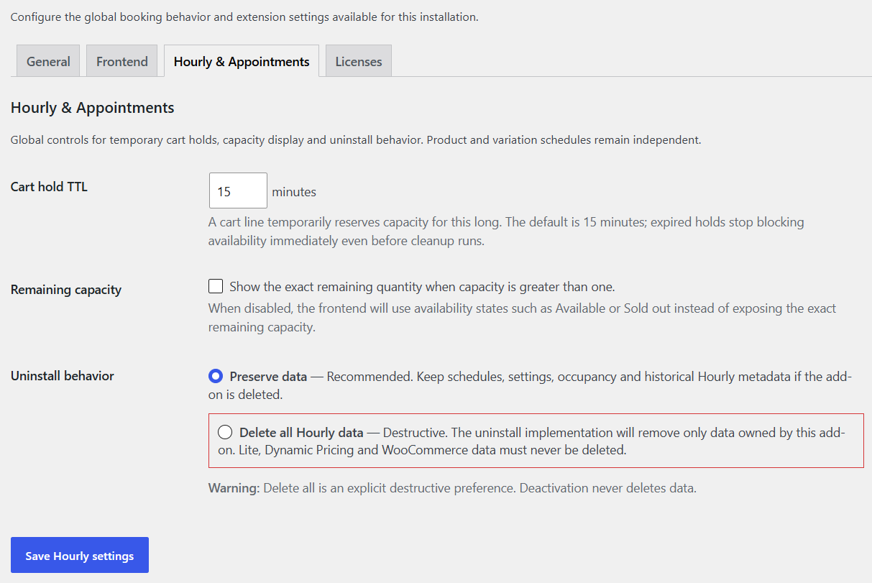
- Cart hold TTL: defines how many minutes a cart line temporarily reserves capacity. Default: 15 minutes.
- Remaining capacity: when enabled and slot capacity is greater than one, the frontend displays the exact remaining quantity under available appointment times. This option is independent of Base Settings → Frontend → Show remaining availability (Date Range only).
- Uninstall behavior: Preserve data or Delete all Hourly data.
Deactivation does not delete configuration or business data.
Delete all Hourly data removes only Hourly-owned data; it does not remove WooCommerce orders or data belonging to DevAgent WBR or Dynamic Pricing.
Hourly global settings for cart hold TTL, remaining capacity and uninstall behavior.
13. Compatibility and REST
Dynamic Pricing 1.0.1DevAgent WBR — Dynamic Pricing 1.0.1 remains limited to
date_range. It does not change Hourly
time_slot prices in Single or Multiple slot mode.
Both add-ons can be active at the same time.
Read the Dynamic Pricing documentation.
RESTHourly uses its own REST endpoints for slot availability and price preview. In Multiple slots mode, the preview can work with the selected set.
Hourly does not convert the DevAgent WBR daily
date_range endpoint into a hybrid hourly endpoint.
14. Troubleshooting
I can select only one time
Check Slot selection. Choose Multiple slots per booking to allow several times in one booking.
A multi-slot booking is rejected although some selected times are still available
If any selected slot does not have enough capacity during server revalidation, the complete set is rejected to prevent a partial booking.
The slot colors do not change
Confirm that the colors were saved on the correct Booking Simple product or variation. If the site uses an external cache, clear that cache.
No slots appear
Check Schedule source, weekly hours, exceptions, Manual slots, Duration, Start interval, Minimum advance, Maximum booking horizon, Capacity and buffers.
A slot shows Sold out
A confirmed occupancy or an active hold may be consuming the remaining capacity. If the requested quantity exceeds available spaces, reduce Quantity or choose another date before adding the appointment to the cart.
The license expired
Installed booking functionality continues to operate. The license affects update delivery and support eligibility.
A required dependency is missing
Hourly must stop its functional modules safely and display an administrative notice. It must not silently fall back to the date_range booking model.
What should I include in a support request?
Include relevant WordPress, PHP, WooCommerce, DevAgent WBR and Hourly versions, product type, Single or Multiple slots, Schedule source, reproduction steps, a configuration screenshot and a sanitized debug.log. Never send full keys, passwords, personal data or payment information.
15. Changelog preview