
DevAgent WBR — Dynamic Pricing Documentation
Install the add-on, activate your license, create pricing rules and verify how prices are calculated for Booking simple products and individual Booking variable variations.
Version 1.0.1 · Updated October 2026
Requires DevAgent WBR 1.1.0+ · WordPress 6.8+ · PHP 8.1+ · WooCommerce 8.5+ · Annual single-site license.
Quick start
DevAgent WBR — Dynamic Pricing adds product-level pricing rules to the booking workflow provided by DevAgent WBR. Use these four tasks to move from installation to a verified frontend calculation.

Install the add-on
Download the ZIP from your DevAgent account, upload it through WordPress and activate it after WooCommerce and DevAgent WBR are active.

Activate the license
Open the Licenses settings, enter the key for this website and activate it to receive updates and support while the annual license remains active.

Create pricing rules
Open a compatible Booking simple product or an individual Booking variable variation and define the dates, weekdays, duration conditions and price adjustment.

Verify frontend pricing
Select a booking date range on the product page and confirm the daily or nightly prices, estimated booking total and final cart amount.
On this page
1. Requirements
2. Installation
3. License activation
4. Where pricing rules are configured
5. Creating a pricing rule
6. Booking simple products
7. Booking variable products
8. How pricing is calculated
9. Frontend pricing display
10. Cart and checkout behavior
11. Compatibility and current scope
12. Troubleshooting
13. Changelog preview
1. Requirements
Before installing DevAgent WBR — Dynamic Pricing, confirm that the website meets these requirements:
2. Installation
Sign in to your DevAgent account and download the DevAgent WBR — Dynamic Pricing ZIP file.
Log in to WordPress as an administrator.
Go to Plugins > Add New Plugin > Upload Plugin.
Select the ZIP file and choose Install Now.
Activate the add-on.
Confirm that WooCommerce and DevAgent WBR are also active.
Open an existing compatible booking product to confirm that the Dynamic pricing panel is available.
3. License activation
Go to DevAgent WBR > Settings > Licenses.
Locate DevAgent WBR — Dynamic Pricing.
Paste the license key assigned to this website.
Select Activate License.
Confirm that the license status is active.
4. Where pricing rules are configured
Dynamic Pricing rules belong to the compatible product or variation where they are created.
Booking simple
Open the WooCommerce product and use the Dynamic pricing panel in the product data area. The rules apply to that Booking simple product.
Booking variable
Open the WooCommerce product, edit the required variation and use the Dynamic pricing controls available for that variation. Each compatible variation can have its own rules.Rules are not global across every product, category or tag. A rule created for one product or variation does not automatically apply to another.
5. Creating a pricing rule
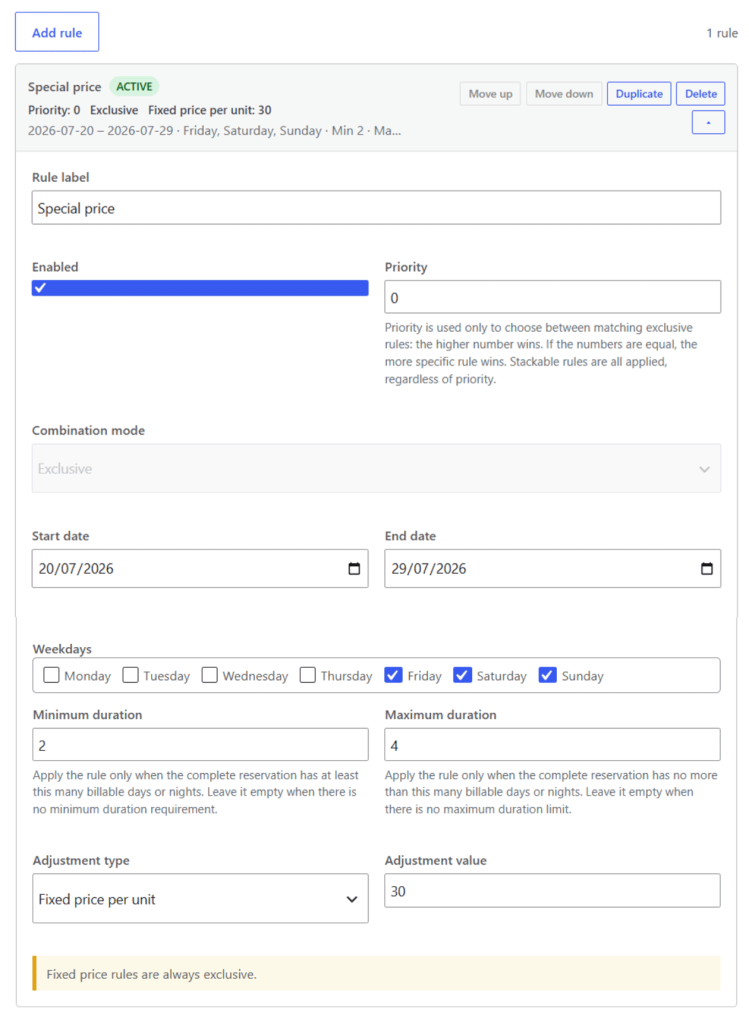
Enable Dynamic pricing for the product or variation, then choose Add rule.
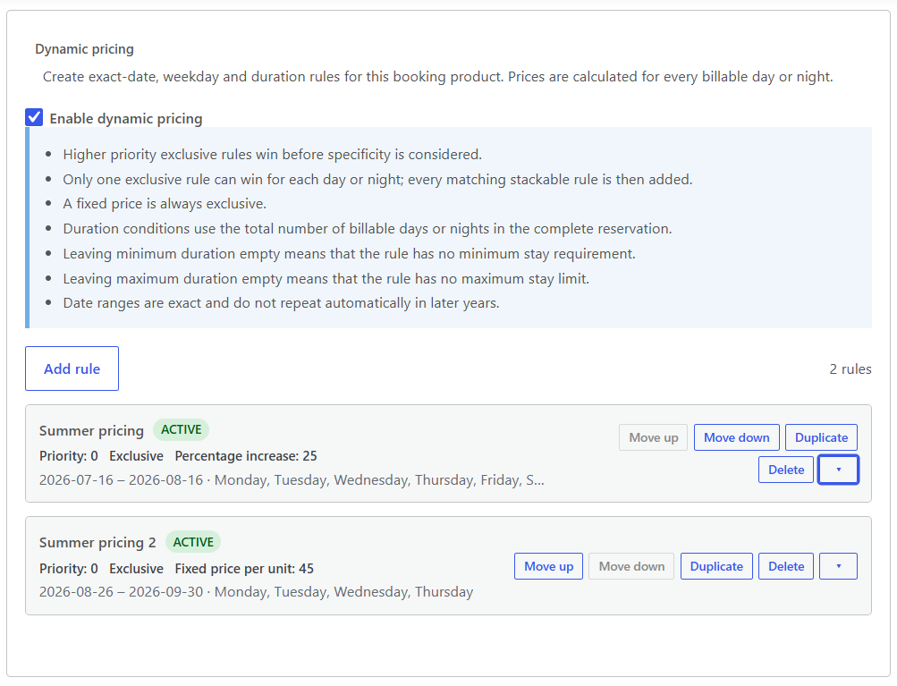
Real rule list showing active state, priority, combination mode, adjustment type and date summary.
Rule label and active state
Use a clear internal label such as Summer peak dates, Weekend adjustment or Long booking discount. The active control determines whether the rule is considered during price calculation.

Priority and combination mode
Priority resolves competing exclusive rules. A higher priority wins before specificity is considered. Matching stackable rules can be added after the winning exclusive rule is resolved.
Exact date range
Set a start and end date for a defined period. Both dates are included. Exact ranges do not repeat automatically in later years.

Weekdays
Select one or more weekdays when the rule should apply only on those billable days or nights. Leave all weekdays unchecked when any weekday may match.
Minimum and maximum duration
Duration conditions use the total number of billable days or nights in the complete reservation. Empty fields mean that no minimum or maximum limit applies.
Adjustment type and value
Use a fixed price per unit, a percentage adjustment or a fixed adjustment per unit. A fixed price per unit always behaves as an exclusive rule.6. Booking simple products
For a Booking simple product, all rules in the Dynamic pricing panel belong to that product.
Recommended workflow:
Confirm the WooCommerce base price for one billable day or night.
Enable Dynamic pricing.
Create the most important exclusive rules first.
Add stackable adjustments only when more than one adjustment should apply together.
Save or update the product.
Test a date range that matches the rule and another date range that does not.
The WooCommerce product price remains the starting point whenever no fixed price or adjustment changes a billable unit.
7. Booking variable products
Booking variable products use rules configured on individual compatible variations.
Open the variable product.
Expand the variation that requires a pricing rule.
Confirm that the variation has a valid base price.
Enable and configure Dynamic pricing for that variation.
Save the variation and update the product.
Repeat only for the other variations that need their own rules.
Rules do not automatically inherit from the parent product or from another variation. Customers must select a variation before the booking calendar and its applicable prices can be evaluated.
8. How pricing is calculated
Start from the WooCommerce price
The Booking simple product or selected Booking variable variation provides the base price for each billable day or night.Evaluate the booking context
For each billable unit, the add-on evaluates the exact date, weekday, total booking duration and active rules configured for that product or variation.Resolve matching rules
Priority determines the winning exclusive rule. Matching stackable rules can then be added. A fixed price per unit is always exclusive.Calculate every billable unit
Each day or night is calculated separately. A single reservation can therefore use different prices on different dates.Illustrative example
A five-night booking crosses two exact date periods:
- 28–30 June: 3 nights × €50 = €150
- 1–2 July: 2 nights × €70 = €140
- Booking total: €290
The add-on does not force one rate across the entire reservation when different billable nights match different rules.
9. Frontend pricing display
When the relevant frontend options are enabled, customers can see pricing information while selecting dates.
The product page can display:
- the price associated with each available date;
- the selected booking range;
- the number of billable days or nights;
- the estimated booking price;
- a note that the final amount is confirmed in the cart.
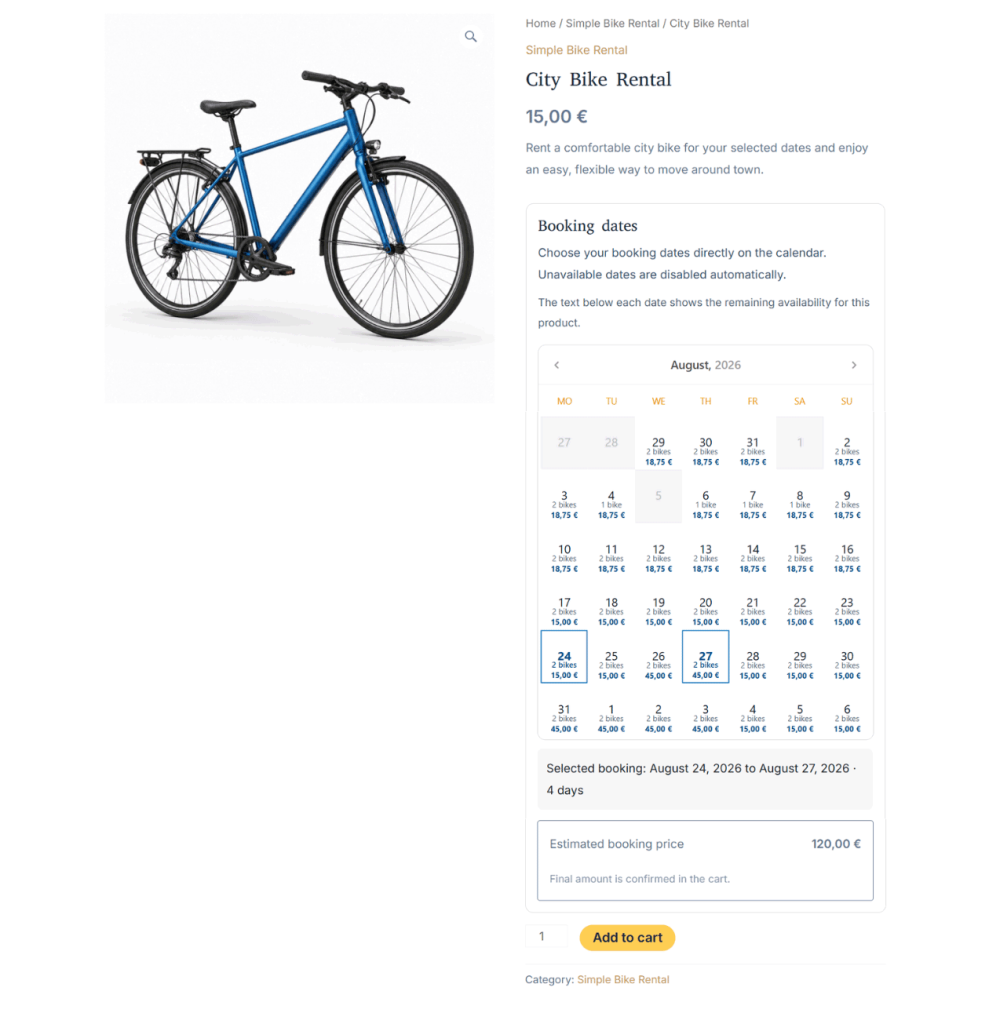
Real frontend calendar showing per-date pricing, the selected range and the estimated booking total.
10. Cart and checkout behavior
After the customer selects dates and adds the booking product to the cart, the calculated booking price continues through the WooCommerce cart and checkout workflow provided by DevAgent WBR.
The final cart amount should match the applicable per-day or per-night calculation. WooCommerce can still apply taxes, coupons or other store-level behavior according to the store configuration; those features are not Dynamic Pricing rule conditions in version 1.0.0.
11. Compatibility and current scope
Included in version 1.0.0
Rules for Booking simple products.
Rules for individual Booking variable variations.
Exact date ranges.
Weekday conditions.
Minimum and maximum total booking duration.
Rule priority.
Exclusive and stackable modes.
Fixed price, percentage and fixed per-unit adjustments.
Separate calculation across different billable days or nights.
Frontend price display and estimated booking total.
WooCommerce cart and checkout integration through DevAgent WBR.
Outside the current scope
Hourly booking prices.
Automatically recurring annual date rules.
Global rules for all products, categories or tags.
Occupancy-based or inventory-based pricing.
User-role, coupon or advance-booking rule conditions.
Parent-product rule inheritance for variations.
Product-wide presets, bulk editing or import/export.
Dedicated multi-currency integration.
Review this scope before relying on a pricing condition that is not listed as included.
12. Troubleshooting
The Dynamic pricing panel does not appear
- Confirm that WooCommerce, DevAgent WBR and DevAgent WBR — Dynamic Pricing are active.
- Confirm that the product is Booking simple or Booking variable.
- For a variable product, open an individual compatible variation.
- Confirm that the installed versions meet the stated requirements.
The license does not activate
- Confirm that the key was copied without extra spaces.
- Confirm that the license is assigned to this website and has not exceeded its activation limit.
- Confirm that the website can make outbound HTTPS requests.
- Retry after clearing any transient server or security-plugin error.
- Use the account support channel if the status remains inactive.
A rule does not change the price
- Confirm that the rule is enabled.
- Review its exact date range and selected weekdays.
- Confirm that the complete reservation meets the minimum and maximum duration.
- Check the rule priority and combination mode.
- Confirm that the rule was saved on the correct product or variation.
Several rules produce an unexpected result
- Review which exclusive rule has the highest priority.
- When priorities are equal, compare rule specificity.
- Check whether additional matching rules are stackable.
- Remember that a fixed price per unit is always exclusive.
- Test one rule at a time when isolating a conflict.
The frontend price or estimated total does not appear
- Confirm that the frontend display option is enabled.
- Select a valid product or variation and a complete booking range.
- Clear browser, page, server and object caches.
- Re-save the product or variation after changing rules.
- Test with a date range that definitely matches an active rule.
The cart price differs from the product page estimate
- Confirm that the same variation, dates and quantity were added to the cart.
- Review WooCommerce taxes, coupons and other store-level adjustments.
- Clear stale cart/session data and test again in a private window.
- Confirm that the active rules were not changed after the estimate was displayed.
13. Changelog preview
Version 1.0.1

Current release 1.0.1 is a maintenance update covering coding standards, WordPress 7.1.2 and WooCommerce 11.1.2 compatibility metadata, and commercial add-on bootstrap coexistence. Existing date-range pricing rules are unchanged.
Version 1.0.1 does not introduce new pricing rules, database migrations or Hourly time-slot pricing. The complete changelog includes the original 1.0.0 release and its feature history.
Related resources
Use these resources to review the product, install its required base plugin and manage your licensed download.

DevAgent WBR — Dynamic Pricing
Review the current product scope, requirements, license and purchase information.

DevAgent WBR
Review the free booking and rental plugin required by this add-on.

DevAgent WBR documentation
Learn how to create Booking simple and Booking variable products, configure availability and manage bookings.

Account and licenses
Access licensed downloads, keys, orders and account information.