1. Requirements
Before installing DevAgent WBR, make sure your site meets the following requirements:
DevAgent WBR works with WooCommerce products, cart, checkout, orders and emails. It does not replace WooCommerce; it extends the existing WooCommerce workflow with rental and booking functionality.
Important
WooCommerce must remain installed and active. Without WooCommerce, DevAgent WBR cannot provide booking products, cart validation, checkout validation or order metadata.
2. Installation
Install from WordPress.org
1
Log in to your WordPress admin area.
2
Go to Plugins > Add New Plugin.
4
Locate DevAgent WBR — Rentals and Bookings for WooCommerce.
7
Make sure WooCommerce is installed and active.
8
Go to DevAgent WBR > Settings and review the global booking settings.
Install from a ZIP file
1
Log in to your WordPress admin area.
2
Go to Plugins > Add New Plugin.
4
Select the DevAgent WBR ZIP file.
7
Make sure WooCommerce is installed and active.
8
Go to DevAgent WBR > Settings and review the global booking settings.
After activation, DevAgent WBR adds Booking simple and Booking variable product types and a DevAgent WBR administration menu for settings, availability and add-ons.
3. Global settings
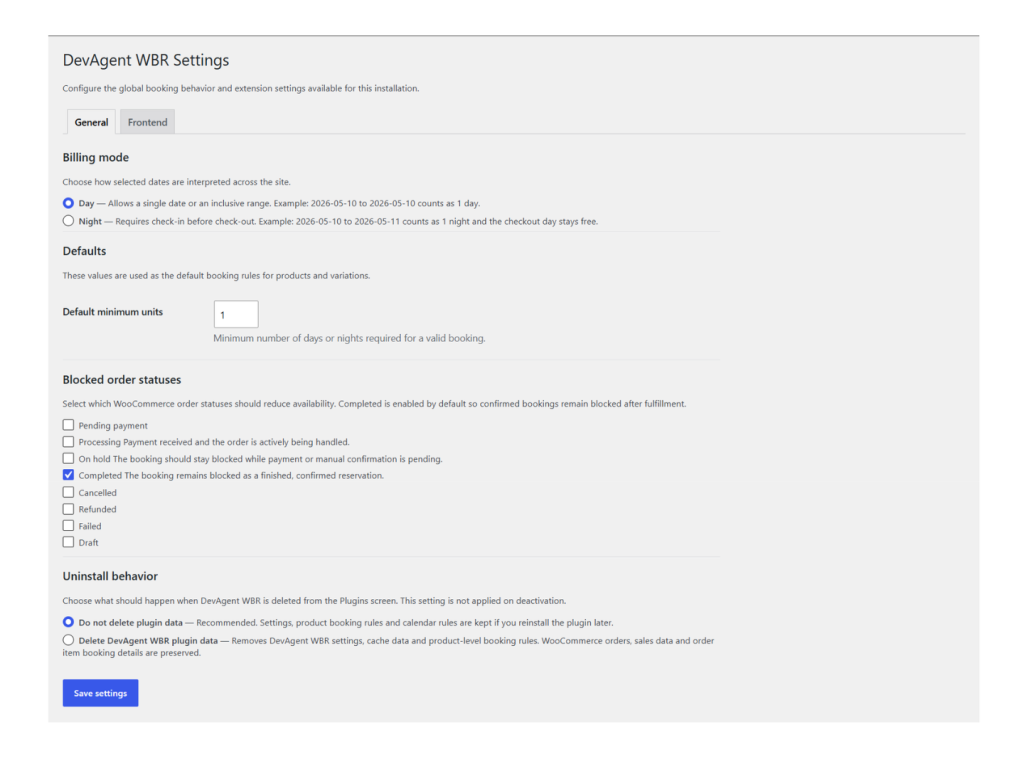
Go to DevAgent WBR > Settings to configure the default booking behavior for your site.
The core settings are organized into URL-based tabs:
Installed extensions may add their own settings tabs. The reserved Licenses tab appears only when an extension contributes license content.
Billing mode
Day mode allows a single date or an inclusive date range. A booking from May 10 to May 10 counts as one day.
Night mode requires a check-in date before the check-out date. A booking from May 10 to May 11 counts as one night, and the checkout date remains available for a new booking.
Default minimum units
Default minimum units defines the minimum number of days or nights required for a valid booking.
For example, a value of 2 requires at least two days in day mode or two nights in night mode.
Blocked order statuses
DevAgent WBR calculates availability from WooCommerce order line item metadata. Choose which WooCommerce order statuses should reduce availability.
Completed orders remain blocked by default so confirmed bookings continue to reduce availability. You can also block dates for processing or on-hold orders when your workflow must reserve availability before final completion.
Uninstall behavior
Choose what happens when DevAgent WBR is deleted from the Plugins screen.
The recommended option is to keep plugin data. This preserves settings, product booking rules and calendar rules if you reinstall the plugin later.
If you choose to delete plugin data, DevAgent WBR removes its settings, availability cache and product-level booking rules. WooCommerce orders, sales data and order item booking details are preserved.
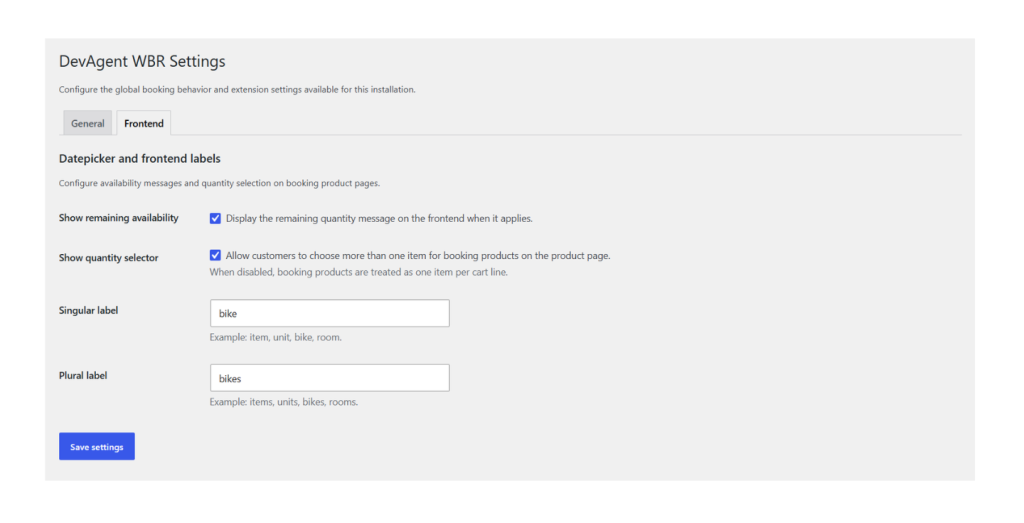
Frontend settings
Frontend settings control how availability information is displayed to customers.
- Show or hide remaining availability on the product page.
- Allow or prevent customers from selecting more than one item.
- Customize singular and plural resource labels.
Examples include item/items, unit/units, bike/bikes or room/rooms.
Upgrade / Add-ons
Go to DevAgent WBR > Upgrade / Add-ons to review available and installed extensions. Available add-on cards are hidden automatically when the corresponding extension is detected as installed.
4. Creating booking products
DevAgent WBR adds two WooCommerce product types:
- Booking simple
- Booking variable
Booking Simple
Use Booking simple when the product has one bookable option.
Typical use cases include one apartment, one room type, one rental item, one tour or experience, or one bookable service with a single price.
1
Go to Products > Add New Product.
2
Enter the product name, description and images.
3
In Product data, select Booking simple.
4
Set the regular WooCommerce price. This is the base price per booking unit.
5
Configure Capacity per day.
7
Publish or update the product.
Booking simple product data
Booking Variable
Use Booking variable when the customer must select a variation before choosing booking dates.
Typical use cases include rooms with different capacities, bikes in different sizes, rental equipment with different models, apartments with different configurations, or services with different options.
1
Go to Products > Add New Product.
2
Enter the product name, description and images.
3
In Product data, select Booking variable.
4
Create the product attributes.
5
Create variations from those attributes.
8
Configure booking capacity and minimum units for each variation.
9
Publish or update the product.
Booking variable variation settings
Booking settings are configured inside each variation. The parent product does not contain shared booking options in the General tab.
5. Capacity per day
Capacity per day defines how many units can be booked for the same occupied date.
For example, if you rent bikes and set Capacity per day to 5, customers can book up to five bikes for the same day while enough availability remains.
If you reduce capacity after existing bookings already occupy a date, the existing bookings are preserved. The new capacity affects future availability checks only.
6. Minimum units
Minimum units defines the shortest permitted booking length.
- In day mode, units are days.
- In night mode, units are nights.
Examples:
- Minimum units
1 allows a one-day booking in day mode. - Minimum units
2 requires at least two days or two nights, depending on the selected billing mode.
7. Frontend booking flow
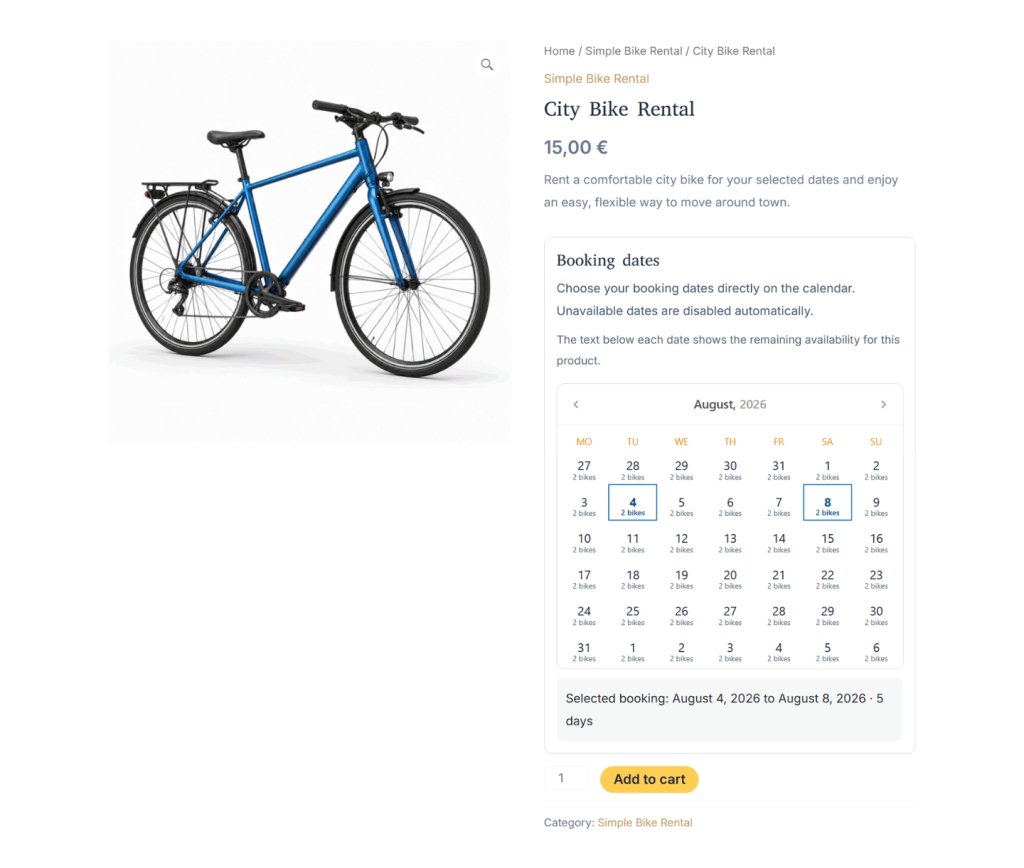
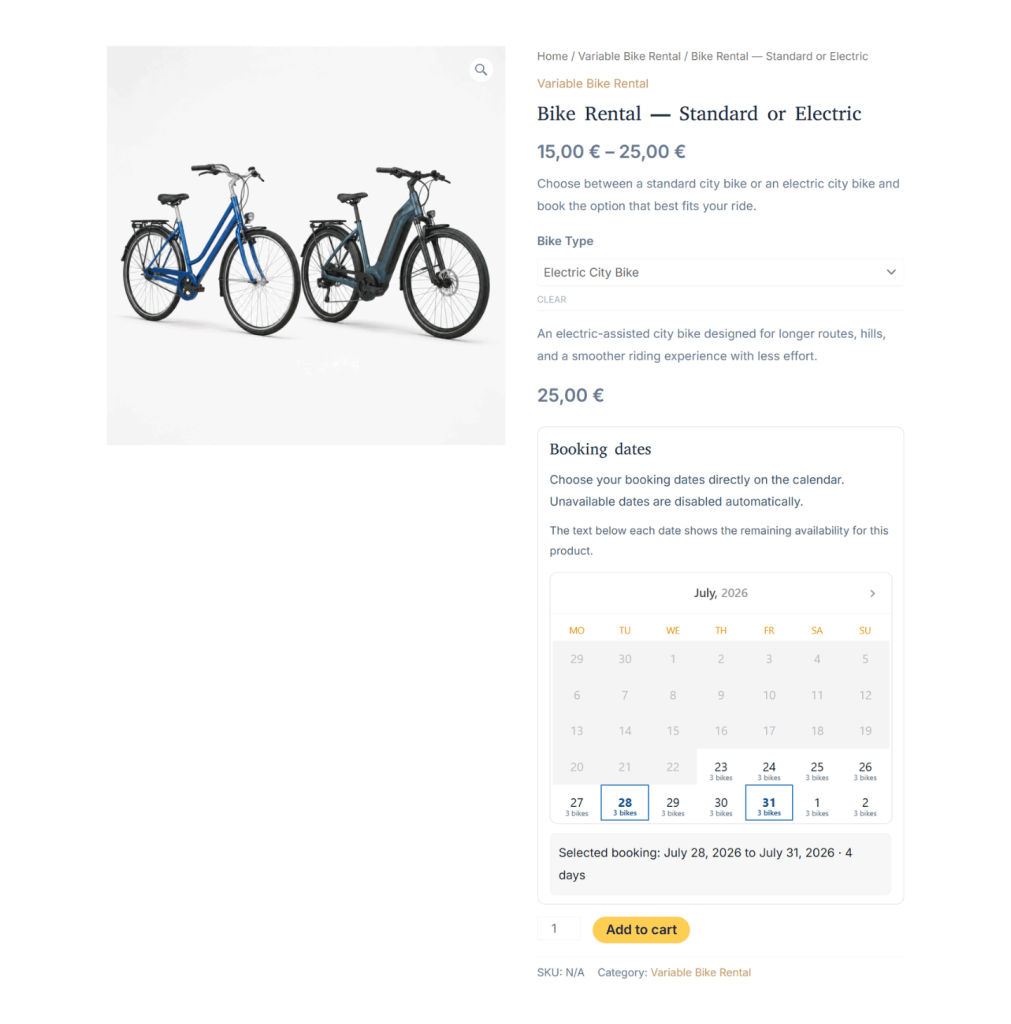
DevAgent WBR displays a booking calendar on the WooCommerce product page before the add-to-cart action.
Customers select a booking date or date range directly on the calendar. Unavailable dates are disabled automatically.
When remaining availability is enabled, the calendar can show how many units remain available for each date.
After the customer selects valid dates, DevAgent WBR sends the booking information through WooCommerce cart and checkout.
Booking simple product frontend
Booking variable product frontend
Customer-facing labels
Customers may see booking details such as Start date, End date, Units, Remaining availability, Available, Limited and Unavailable.
For Booking variable products, the customer must select a variation before choosing booking dates.
8. Cart, checkout and order metadata
DevAgent WBR stores booking details as WooCommerce order item metadata.
Booking details are displayed in Cart, Checkout, WooCommerce admin orders and customer order emails.
The main booking metadata includes Start date, End date, Billing mode and Units.
At checkout, DevAgent WBR validates availability again. If the selected dates are no longer available, checkout stops and the customer must choose another date range.
9. Pricing behavior
DevAgent WBR uses the WooCommerce product or variation price as the base price for each booking unit.
The booking price is calculated by multiplying the base price by the number of booking units.
For example, if the base price is €50 and the customer selects three nights, the booking price is €150.
When quantity selection is enabled and the customer books more than one item, WooCommerce also applies the selected quantity to the cart line total.
Related add-on
Advanced pricing rules are not included in the free plugin. For date-range, weekday, duration and priority rules, see the DevAgent WBR — Dynamic Pricing documentation.
10. Calendar / Bookings
Go to DevAgent WBR > Calendar / Bookings to review availability and manage booking dates.
The screen allows you to select a booking product or booking variation, choose a month, review daily availability, see available, limited or blocked dates, inspect booking entries linked to WooCommerce orders, block or unblock specific dates, increase or decrease capacity for specific dates, clear capacity overrides and invalidate availability cache when needed.
Available
The date can still accept the requested quantity.
Limited
The date is partially occupied but still has remaining capacity.
Blocked
The date is unavailable because it is in the past, manually blocked or does not have enough capacity.
Capacity override
A custom capacity value has been set for the date, including zero.
11. Availability cache
DevAgent WBR uses an availability cache to avoid recalculating the same booking availability repeatedly.
When product settings, calendar rules or related booking data change, the plugin invalidates the relevant cache.
From Calendar / Bookings, you can manually invalidate the selected product cache or all availability cache entries.
12. HPOS compatibility
DevAgent WBR is compatible with WooCommerce High-Performance Order Storage.
The plugin reads booking data through WooCommerce APIs instead of relying directly on legacy order database tables.
13. Troubleshooting
Review these common situations before requesting help.
The booking calendar does not appear
Confirm that the product type is Booking simple or Booking variable. For Booking variable products, confirm that active variations have prices. Confirm that WooCommerce and DevAgent WBR are active.
The customer cannot select dates
Check that the dates are not in the past, check for manual blocks or full capacity, confirm that the selected range meets the minimum booking length, and review the product capacity and blocked order statuses.
Availability looks incorrect
Go to DevAgent WBR > Calendar / Bookings, select the product or variation, review existing bookings, day rules and capacity overrides, and invalidate the relevant availability cache if needed.
The price is higher than expected
DevAgent WBR multiplies the WooCommerce base price by the number of booking units. If quantity selection is enabled, WooCommerce also multiplies the cart line by the selected quantity.
An extension tab or license panel is missing
Confirm that the extension is installed and active, confirm that the extension version is compatible with the installed DevAgent WBR version, and remember that the Licenses tab remains hidden when no installed extension contributes license content.
14. Changelog preview